
General
1. Always use CHROME as browser.
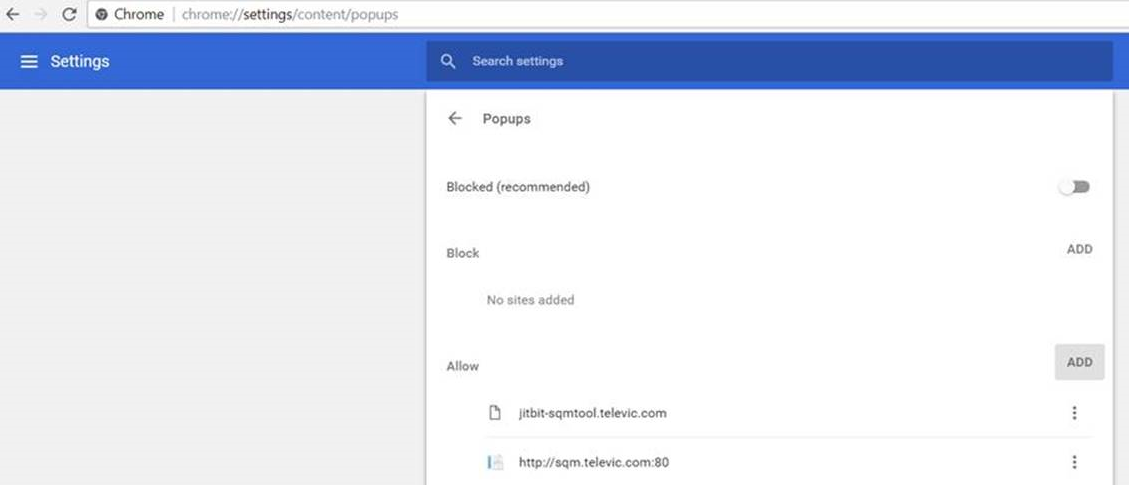
Allow pop-ups from jitbit-sqmtool.televic.com and sqm.televic.com:
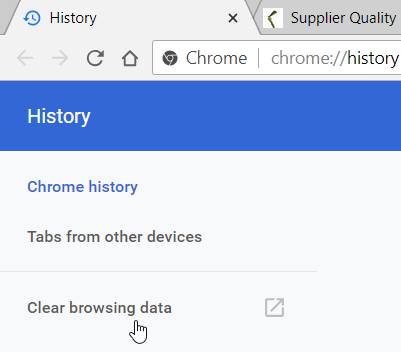
It is recommended to periodically clear your history (to avoid that - with a new version of the SQM-tool - still old DLL-files are used):
2. All communication should be in english.
3. When describing the non-conformity, try to proceed as follows:
a. State the specification (what was communicated to the supplier e.g. drawing, work instruction,..).
b. State what was objectively measured/noticed - not meeting the specification.
To increase understanding;
- try to use pictures (one picture per different kind of issue is sufficient);
- try to avoid a lot of text.
4. First, fully finish the material inspection. Then (as final step), register the non-conformity
After registration of the non-conformity, the "Inspection Status" will be changed to "Closed" and the "Supplier Quality Inspection" window cannot be edited any more!
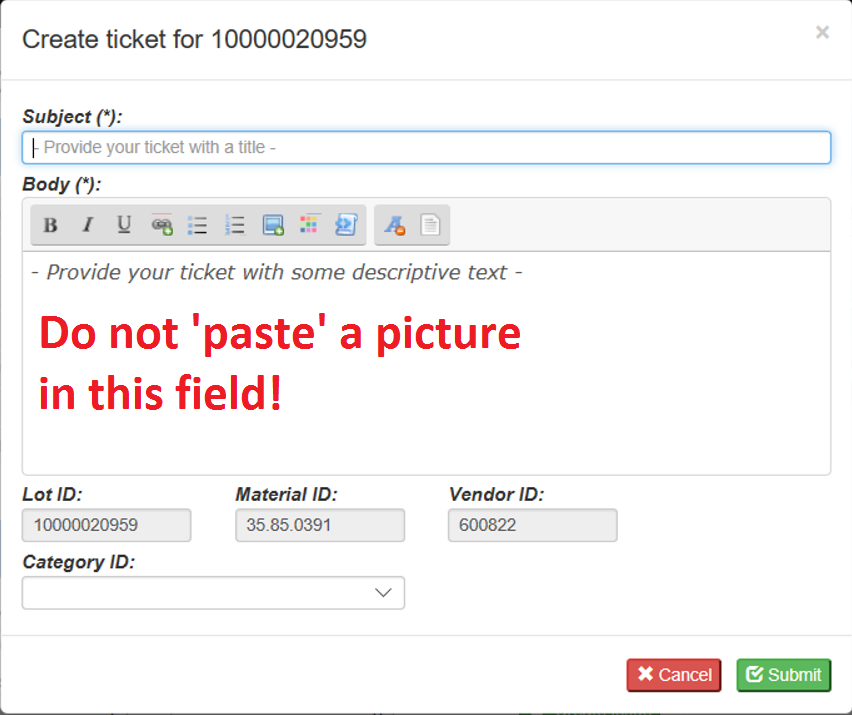
5. Do NOT insert pictures via sqm.televic.com (window below).
Reason: In this case the picture will be stored as "text" (will slow-down the "text" database) instead of an attachment (see below).
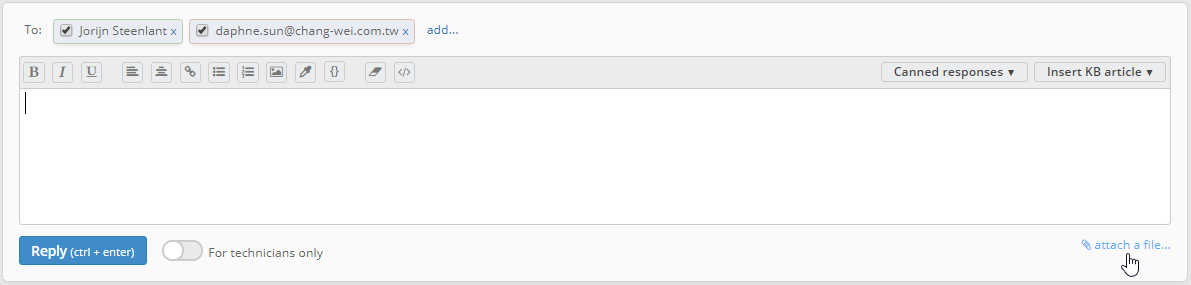
Attach a file by replying in jitbit-sqmtool.televic.com and "attach a file" (multiple files can be attached):
Allow pop-ups from jitbit-sqmtool.televic.com and sqm.televic.com:
It is recommended to periodically clear your history (to avoid that - with a new version of the SQM-tool - still old DLL-files are used):
2. All communication should be in english.
3. When describing the non-conformity, try to proceed as follows:
a. State the specification (what was communicated to the supplier e.g. drawing, work instruction,..).
b. State what was objectively measured/noticed - not meeting the specification.
To increase understanding;
- try to use pictures (one picture per different kind of issue is sufficient);
- try to avoid a lot of text.
4. First, fully finish the material inspection. Then (as final step), register the non-conformity
After registration of the non-conformity, the "Inspection Status" will be changed to "Closed" and the "Supplier Quality Inspection" window cannot be edited any more!
5. Do NOT insert pictures via sqm.televic.com (window below).
Reason: In this case the picture will be stored as "text" (will slow-down the "text" database) instead of an attachment (see below).
Attach a file by replying in jitbit-sqmtool.televic.com and "attach a file" (multiple files can be attached):
DataImage13.png
DataImage13.png
DataImage26.png
DataImage26.png
DataImage75.png
DataImage75.png
DataImage76.png
DataImage76.png
DataImage95.png
DataImage95.png
| Files | ||
|---|---|---|
|
DataImage13.png 116 KB |
||
|
DataImage26.png 23 KB |
||
|
DataImage75.png 21 KB |
||
|
DataImage76.png 86 KB |
||
|
DataImage95.png 26 KB |
 Get help for this page
 Jitbit HelpDesk